
Most office ergonomics checklists start with the chair and end with the screen. They explain how high the monitor should sit and how your wrists should rest, and then they stop, as though the technology around the desk looks after itself. It does not. A monitor that cannot move, a desk that tangles its cables every time it rises, a computer mounted on a wall with no network or power behind it: these are the details that decide whether a good setup works day to day. This office ergonomics checklist covers the basics, then goes into the IT side that most checklists skip, including mounts, cable management, power, and network. It also explains how Gennix installs and wires ergonomic setups for businesses across Vancouver, Surrey, Langley, and the Lower Mainland, especially in medical settings where space is tight and equipment has to work for people who sit, stand, and move all day.

The Basics Every Office Ergonomics Checklist Covers
The goal of office ergonomics is to arrange a workspace so it fits the person using it and the work they do. Most guidance comes down to a handful of ideas. The screen should sit where the head can stay in a comfortable, neutral position rather than tilting up or down. The keyboard and mouse should be close enough that the arms are not reaching, with forearms supported. The chair should be adjustable, with feet supported and the back comfortably backed. Lighting should avoid glare on the screen. And posture should change through the day, with regular breaks and, where possible, a mix of sitting and standing.
The Canadian Centre for Occupational Health and Safety publishes plain-language fact sheets on office ergonomics, including positioning the monitor, adjusting an office chair, and using a sit-stand desk. They are a good starting point for the person-level questions, and a sensible reference for anyone building an ergonomics program for a team.
A note on scope. This post is general guidance, not a substitute for an assessment by a qualified professional. If a particular person has pain, an injury, or a medical condition, an ergonomic assessor or health professional is the right person to advise on their setup. What this post covers is the part that sits alongside that advice: the equipment, mounting, cabling, power, and network that let a good setup actually work.
That part gets overlooked because it falls between departments. Facilities buys the furniture, someone else sets up the computers, and nobody owns the wiring. The result is often a setup that looks right on paper and frustrates the person at the desk.
→ Is your office setup half finished, with good furniture and no plan for the technology? Talk to Gennix about getting the IT side of your workstations right.
Why Gennix Treats Ergonomics as an IT Question
From Gennix’s perspective, a surprising amount of ergonomics comes down to infrastructure. A monitor arm is only useful if it can be mounted securely and the cables can follow it. A sit-stand desk is only comfortable if the cables, power strip, and network connection can move with it. A computer mounted on an exam room wall is only useful if a network cable and power are waiting behind it. None of that is furniture. All of it is installation, and it is exactly the kind of work Gennix does for clients.
Gennix installs ergonomic setups for clients, most often in medical settings. That includes mounting equipment, setting up carts, and handling the cabling and connections that make the equipment work. The service is the installation, and that is where the value sits, because the difference between a setup that works and one that does not is usually in the details of how it was put in.
This also fits how Gennix approaches IT generally. The team that manages your computers, network, and support is often the right team to place the equipment and run the cables, because they already know where the network connections are, what the devices need, and how the office is laid out. A single provider handling the workstation, the connection, and the ergonomic hardware avoids the usual finger pointing between the person who installed the mount and the person who set up the network.
Gennix provides this alongside its business computer support and wider managed IT services, so ergonomic setups sit within the same relationship as everything else.
→ Want one team to handle the workstation, the mount, and the connection behind it? Ask Gennix how an ergonomic installation fits into your IT support.
Monitor Arms and Mounts: What Gennix Installs and How to Plan Them
An adjustable monitor arm lets each person set the screen at the height and distance that suits them, and move it out of the way when they need the desk surface. That makes it one of the most practical items on any office ergonomics checklist, and it matters even more at shared workstations, where several people use the same desk and need to reset the screen for themselves.
Installation is where the details matter. The arm has to be attached to something that can carry it, whether that is the desk or a wall, and the screen has to be positioned so the arm can move through its full range without pulling on its cables. If the cables are too short or too tightly bound, the arm cannot do the job it was bought for. If they are too loose, they dangle into the workspace and snag.
Planning before installation saves a lot of rework. It helps to know how many screens each station needs, who uses the station and whether they change through the day, where the surface or wall can support a mount, and where the cables will run to reach power and the computer. Gennix handles these questions as part of the installation, so the arm, the screen, and the cabling are set up together instead of in separate stages.
The same logic applies to other mounts. Wherever a screen or computer is moved off the desk, someone has to think about how it is held, how it is powered, and how it connects. A mount that was installed without that thinking is the most common reason a good idea ends up unused.
Sit-Stand Desks and Cable Management: Why Gennix Plans the Cables First
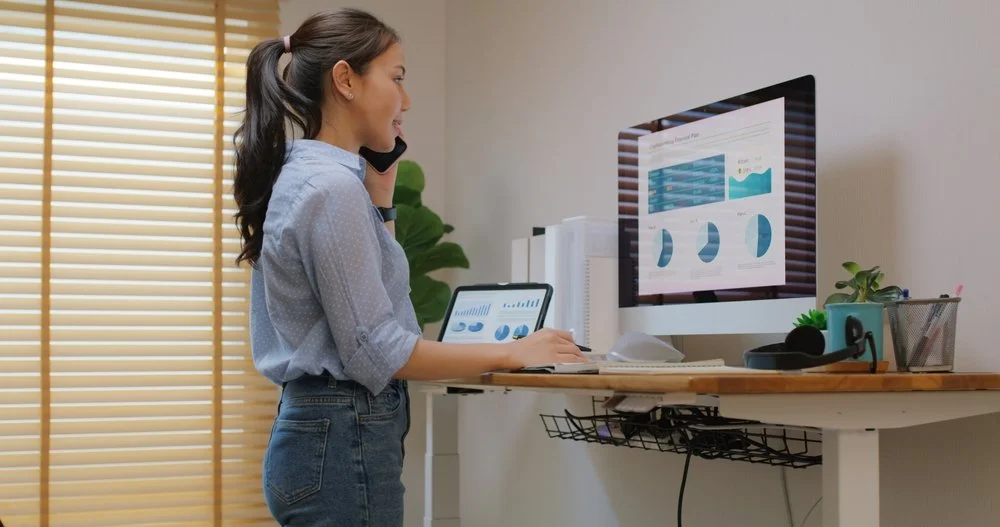
Sit-stand desks are one of the most popular ergonomic upgrades, and one of the most frequently mishandled. The desk itself is straightforward. The trouble starts with everything plugged into it. Every time the desk rises, the cables rise with it, and if they have been tied too short, routed through a tight gap, or left to hang, something gets pulled, kinked, or unplugged.
That is why Gennix helps with cable management on sit-stand setups. The aim is that when the desk goes up and down, the cables are not a big mess and nothing is under strain. In practice that means leaving enough slack for the full travel of the desk, routing cables so they move together instead of catching on each other, keeping power and network connections where the movement will not stress them, and securing cables so they do not hang loose into the workspace.
It also means thinking about where the connections end. The power strip, the network port, and the computer all need to be placed with the desk’s movement in mind. A network cable running to a fixed wall port needs enough slack to follow the desk through its range, and a power strip that is bolted down in the wrong place can be pulled over or strained.
Done properly, cable management is invisible: the desk moves, and nobody notices anything. Done badly, it is the thing everyone notices, and it is often the reason people stop using the standing option after the first month.
→ Bought sit-stand desks and found the cables are now the problem? Talk to Gennix about sorting out the cabling so the desks actually get used.
Wall-Mounted Computers and Carts for Exam Rooms and Tight Spaces
Some of the hardest ergonomic problems are in small rooms. A clinic exam room is a good example. Space is limited, the practitioner needs to see the screen and the patient, and a full desk setup is out of the question. At the same time, the person using the computer may need to sit at some points and stand at others.
Wall-mounted computers and carts solve this by getting the equipment off the floor and surfaces and putting it where it can be used comfortably. A wall-mounted unit with an adjustable arm lets the practitioner set the screen height for sitting or standing. A cart can move equipment to where it is needed and put it away when it is not. Either way, the point is to place the computer in a tight location in a way that works for the person using it, whatever their height or posture.
Gennix installs this kind of equipment for clients, including carts and wall mounts, and handles the cabling and connections it needs. That matters in a medical setting because the installation has to be tidy, secure, and dependable. Loose cables in a small room are a nuisance and a trip hazard, and an unreliable connection at the point of care is a problem for everyone.
The same approach applies outside healthcare, anywhere a computer has to work in a confined or shared space, such as a reception counter, a lab bench, or a back office with no room for a standard desk.
Power and Network Cabling: The Part That Decides Whether the Setup Works
A mount with nothing behind it is only a bracket. The piece of an ergonomic installation that is most often forgotten is the infrastructure that makes the equipment work once it is in place: power and a network connection at the exact spot where the computer will sit.
When Gennix installs a wall-mounted unit, it runs the network cable to that location and coordinates with the client so that power is available there. These steps need to happen before or alongside the mounting, because adding a network drop or a power outlet to a finished wall is far more disruptive than planning for it at the start.
A few questions are worth asking early. Is there power at the mounting location, or does it need to be arranged? Is there a network drop, or does one need to be run? Should the connection be wired or wireless? For a fixed workstation, a wired connection is often more dependable than Wi-Fi, which matters for equipment people rely on all day. And where will the cables travel between the wall, the mount, and the computer, so they are protected and out of the way?
Treating these as part of the ergonomic plan, rather than as afterthoughts, is what separates a setup that works from one that needs fixing. Gennix handles the cabling and connection work as part of the installation, so the person using the equipment simply finds that it works.
→ Planning a wall mount or a new workstation and not sure what needs to be in place behind it? Ask Gennix to walk through the power and network requirements before anything is installed.
How Gennix Approaches Ergonomic Setups for Healthcare Clinics
Gennix does most of its ergonomic installation work in medical settings, and that is not an accident. Clinics have exactly the conditions that make ergonomic setups hard: small rooms, equipment used by several people through the day, practitioners who move between sitting and standing, and a need for everything to work reliably at the point of care.
Gennix has a long history supporting medical practices, which means the team already understands how clinics operate and what the technology has to do. That experience shapes how installations are planned: where a computer needs to be so the practitioner can use it comfortably, how cables should be routed in a small room, and how the equipment connects to the clinic’s network. The wider support for clinics is covered on the page for managed IT services for healthcare.
An ergonomic installation in a clinic also benefits from being done by the same team that supports the rest of the technology. Gennix already knows the network, the computers, and the systems in use, so the new equipment is placed and connected with that context rather than as an isolated job. When a screen moves or a cart is added, it is set up to work with the existing environment.
For smaller practices and growing teams without internal IT, the same approach is available through managed IT services for small business, where ergonomic installations sit alongside everyday support instead of being a separate project.
→ Running a clinic where the computers are in the way or out of reach? Talk to Gennix about an ergonomic setup for your exam rooms and workstations.
A Practical Office Ergonomics Checklist for Your Next Workstation
Here is the checklist in prose, in the order that works best for a new or updated workstation. Start with the person and the work: who will use the station, how long they will be there, whether it is shared, and whether they will sit, stand, or both. Set the surface and the chair so the person can sit with feet supported and forearms comfortably positioned, and decide whether a sit-stand desk or a mounted unit is the right fit.
Position the screen next. It should sit where the head can stay in a neutral position, at a comfortable distance, with no glare, and an adjustable arm if the station is shared or the person wants to change position. Place the keyboard and mouse close enough that the arms are not reaching. Then plan the technology before anything is installed. Decide where the power and network connections will be, how the cables will travel, how much slack a moving desk or arm needs, and whether a wall or cart mount calls for a new network drop or outlet.
Install everything together, so the mount, the cables, the power, and the connection are set up as one job. Test the full range of movement, so that raising the desk or moving the arm does not strain a cable or unplug anything. Finally, check how the setup works in real use after a week or two, and adjust. A checklist is a starting point, and the people using the station will notice what it missed.
For guidance on the person-level details, the Canadian Centre for Occupational Health and Safety fact sheets are a dependable reference, and a qualified assessor can help where someone has specific needs.
Questions Gennix Recommends You Ask Before an Ergonomic Installation
Before hiring anyone to install ergonomic equipment, a few questions will tell you whether the job will be done properly. Ask exactly what the installation includes, and whether that covers the mount, the cabling, the power, and the network connection, or only the hardware itself. Ask who will plan where the cables run and how much slack a moving desk or arm needs. Ask who handles the network connection and whether it will be tested before they leave. Ask what happens if power is not available where the equipment will sit, and who coordinates that.
Ask how the work will fit around your operations, especially in a clinic or other setting where rooms are in use. Ask whether the installer understands your existing network and equipment, or will be working in isolation. If you rent your space, check what your lease allows before anything is mounted on a wall. And ask who you call afterwards if a cable, mount, or connection needs attention.
Providers who do this work well answer these directly and plan for the practical details. If an installer talks only about the hardware and not the cables, power, and network, that is a signal worth noting, because those details are where most ergonomic installations succeed or fail.
→ Comparing quotes for an ergonomic installation and want to know what should be included? Send Gennix the proposal and get a straight read on what is missing.
How Gennix Helps Lower Mainland Businesses with Ergonomic Workstation Setups
Gennix installs ergonomic setups for businesses across Vancouver, Surrey, Langley, Burnaby, Chilliwack, White Rock, Richmond, Coquitlam, Port Coquitlam, Delta, New Westminster, Maple Ridge, and Abbotsford, with particular experience in medical settings.
The work sits within Gennix’s broader IT services: managed IT services, business computer support, Microsoft 365 managed services, network security, and penetration testing. Because one team looks after the computers, the network, and the installation, the equipment is placed with the full picture in mind, and there is one place to call when something needs adjusting.
Calls to the Gennix help desk are answered live from 7:00 AM to 7:00 PM, backed by a 30-minute response guarantee, with onsite support across the Lower Mainland when remote help is not enough. For businesses weighing their wider IT support, our guides on IT support for small business and how to choose a managed IT provider cover what to look for.
→ Ready to get the IT side of your ergonomic setup done properly? Contact Gennix to talk through your workstations, exam rooms, or office layout.
→ Follow Gennix on LinkedIn and Facebook for more IT guidance for businesses across the Lower Mainland.
Frequently Asked Questions
What should an office ergonomics checklist include?
An office ergonomics checklist should cover the chair, the screen position, the keyboard and mouse, lighting, and regular changes of posture, along with the technology that makes the setup work: mounts, cable management, power, and network connections. General guidance is available from the Canadian Centre for Occupational Health and Safety, and a qualified assessor can advise on individual needs.
Do sit-stand desks need special cable management?
Yes. When a sit-stand desk rises, anything plugged into it moves too, so cables need enough slack for the full range of travel and need to be routed so they do not catch, strain, or unplug. Gennix helps with cable management on sit-stand setups so the cables stay tidy as the desk moves.
How do you set up a computer in a small exam room?
A wall-mounted computer with an adjustable arm, or a cart, can put the equipment where a practitioner can use it comfortably, sitting or standing, without taking up floor space. The mount needs a network connection and power at its location. Gennix installs this equipment, runs the network cable, and coordinates so power is available there.
Who installs wall-mounted computers and carts?
Gennix installs wall mounts and carts for clients, along with the cabling and connections they need, most often in medical settings. Because the same team supports the computers and the network, the installation is planned with the existing environment in mind. See our page on business computer support for more.
Does Gennix help businesses in my area with ergonomic setups?
Yes. Gennix provides managed IT services, business computer support, Microsoft 365 managed services, network security, and penetration testing to businesses across Vancouver, Surrey, Langley, Burnaby, Chilliwack, White Rock, Richmond, Coquitlam, Port Coquitlam, Delta, New Westminster, Maple Ridge, and Abbotsford.